Speak in your current app
Chat, take notes or dictate requirements from the same voice panel. Read the transcript as you speak, and return to the keyboard whenever you need to type.
 Milo 输入法
 · Cross-platform input
From spoken thoughts to clear writing.
Voice input, Miaoji notes and nine keyboard schemes; rewrite roles and templates, a pocket dictionary and theme palettes that feel like you.
01 / Voice input
Stay in your current app. Start and stop with the microphone; keep the transcript as is or choose a writing role. The mic graphic fills vertically when speech is detected and recedes in silence while recording continues.
Chat, take notes or dictate requirements from the same voice panel. Read the transcript as you speak, and return to the keyboard whenever you need to type.
Choose Original to keep your words as transcribed, or switch roles to refine them. Rewriting preserves your meaning while following your chosen tone, structure and purpose.
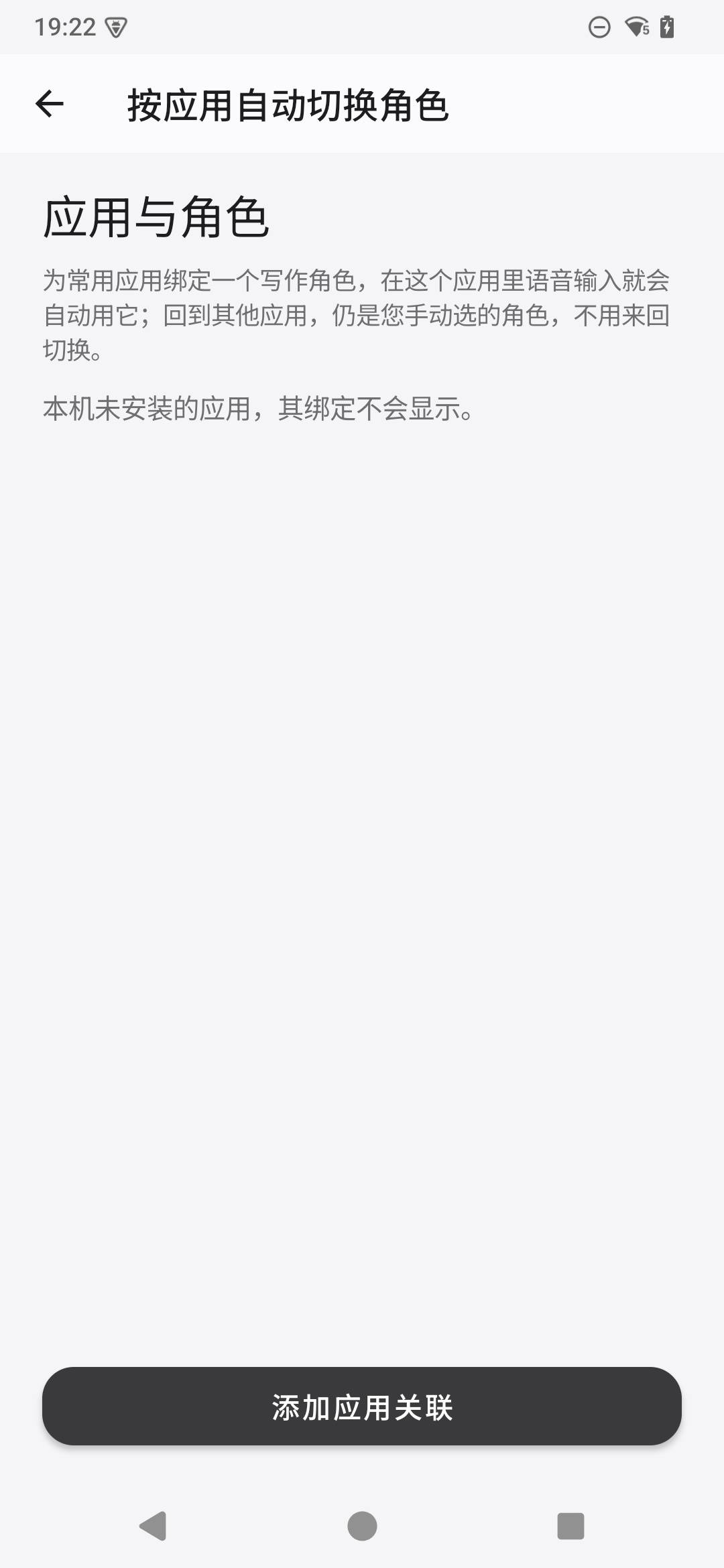
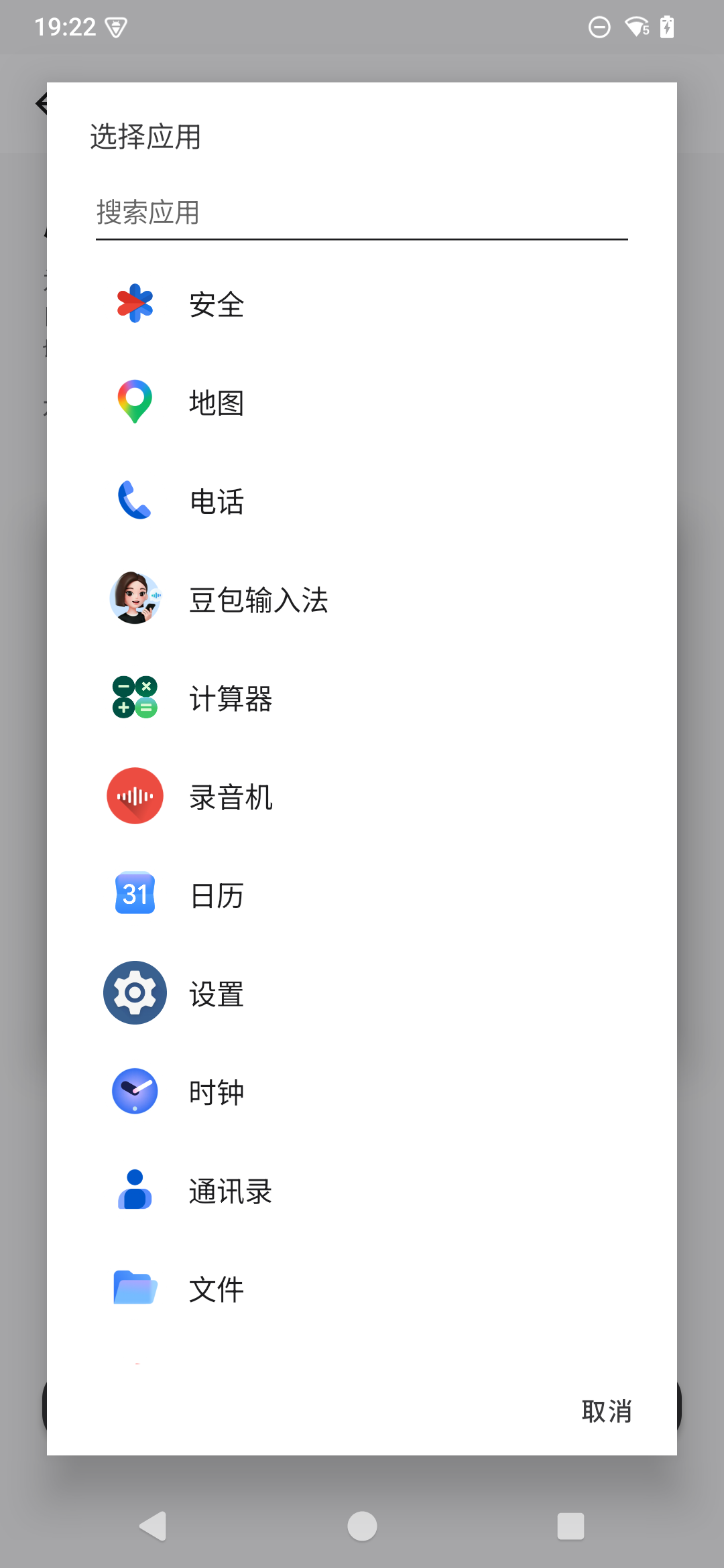
The result goes into the current text field for you to edit or send. Your current role carries across apps by default, and you can change it in the voice panel. Use the top-right option on the Roles page to set automatic switching for individual apps. Each rule starts off; apps without a matching rule keep your current role.
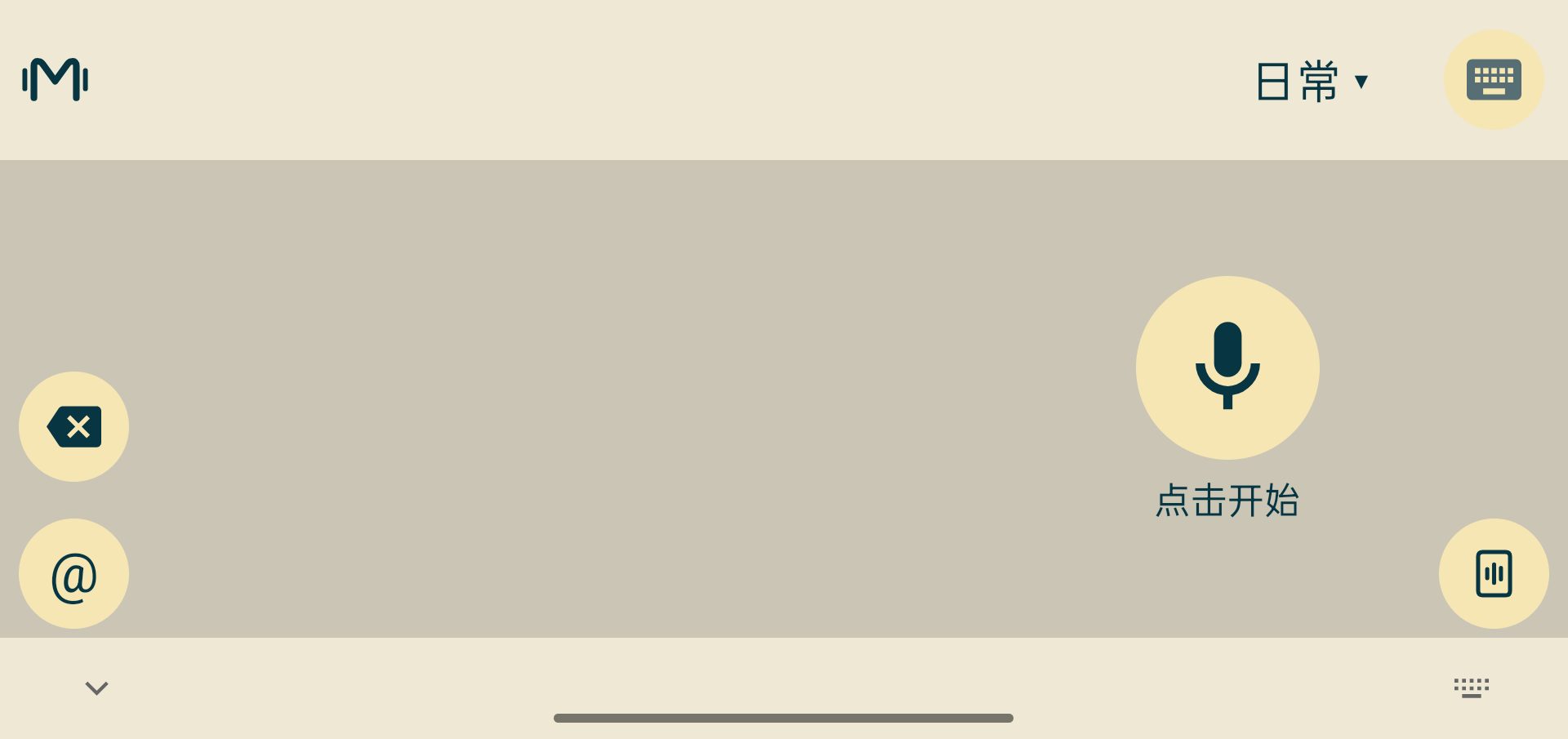
Speech recognition and rewriting require an internet connection and use your in-app character allowance. Traditional keyboard candidates are processed on your device.
02 / Miaoji
Keep meeting points, spoken ideas and reading notes as your own text. Tap Miaoji in the voice panel to start a separate recording; brief pauses do not end it. Ending opens its detail. Organize the original draft with a chosen template; after starting from the keyboard, Back returns to the same editor.
You can turn off the screen or switch apps, then finish and save when ready. Two tape reels turn steadily to show Miaoji is still recording. Writing roles are not applied during capture, and the original transcript stays on your device.
Only an original draft can be organized with a Meeting Notes, Study Notes, Interview Notes, Customer Conversation or Job Interview template. Success replaces the draft with one result. Cancel or failure keeps the draft so you can retry later.
Read the organized result, copy its text, or share the current content from its details. Usage for recognition and each organization step appears on your bill; records can be deleted and restored.
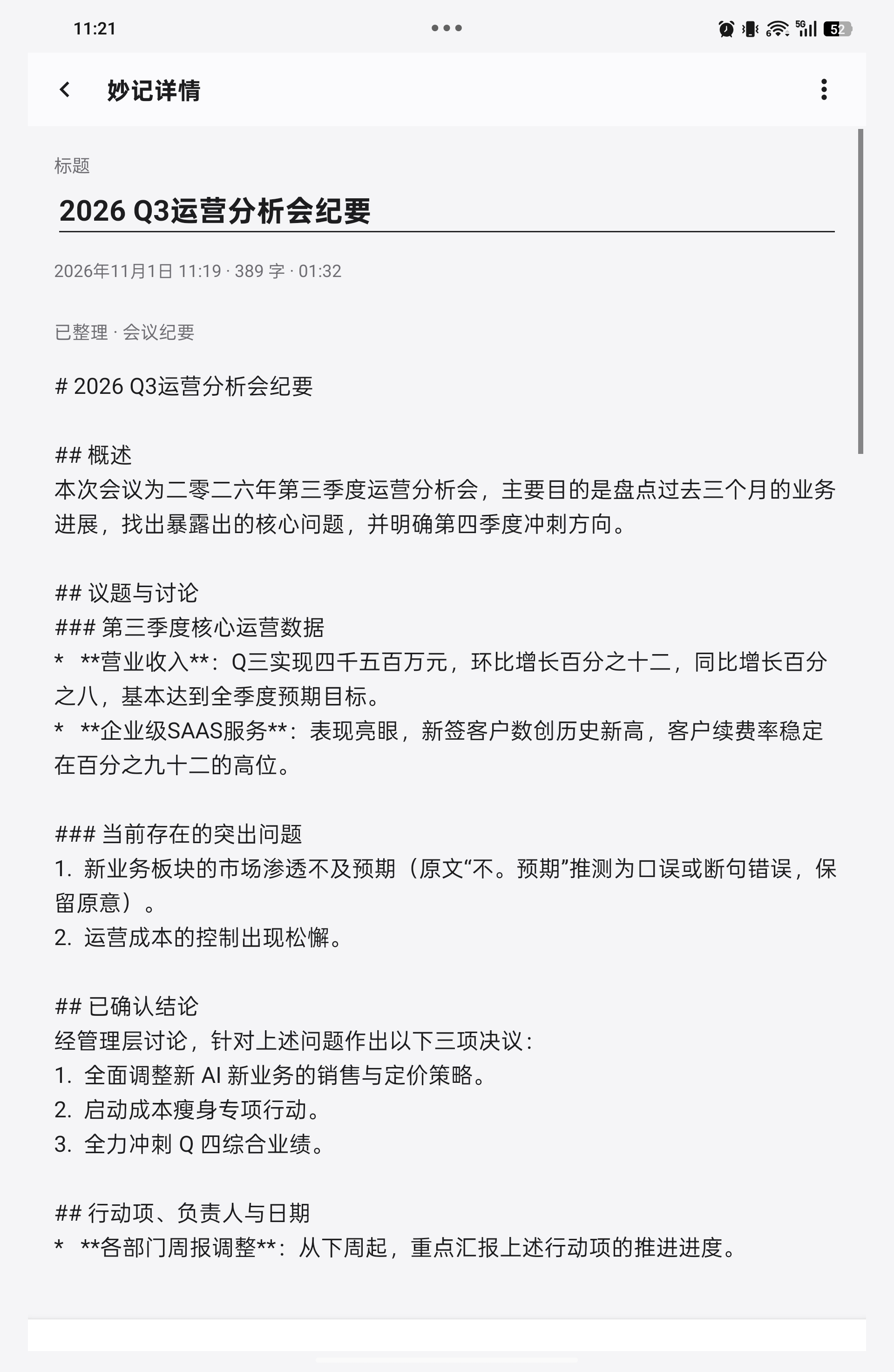
Miaoji saves text, not audio, and does not rewrite during recording. Transcription and organization you choose require a connection and use in-app character credits.
03 / Smart assistants (AppFunctions)
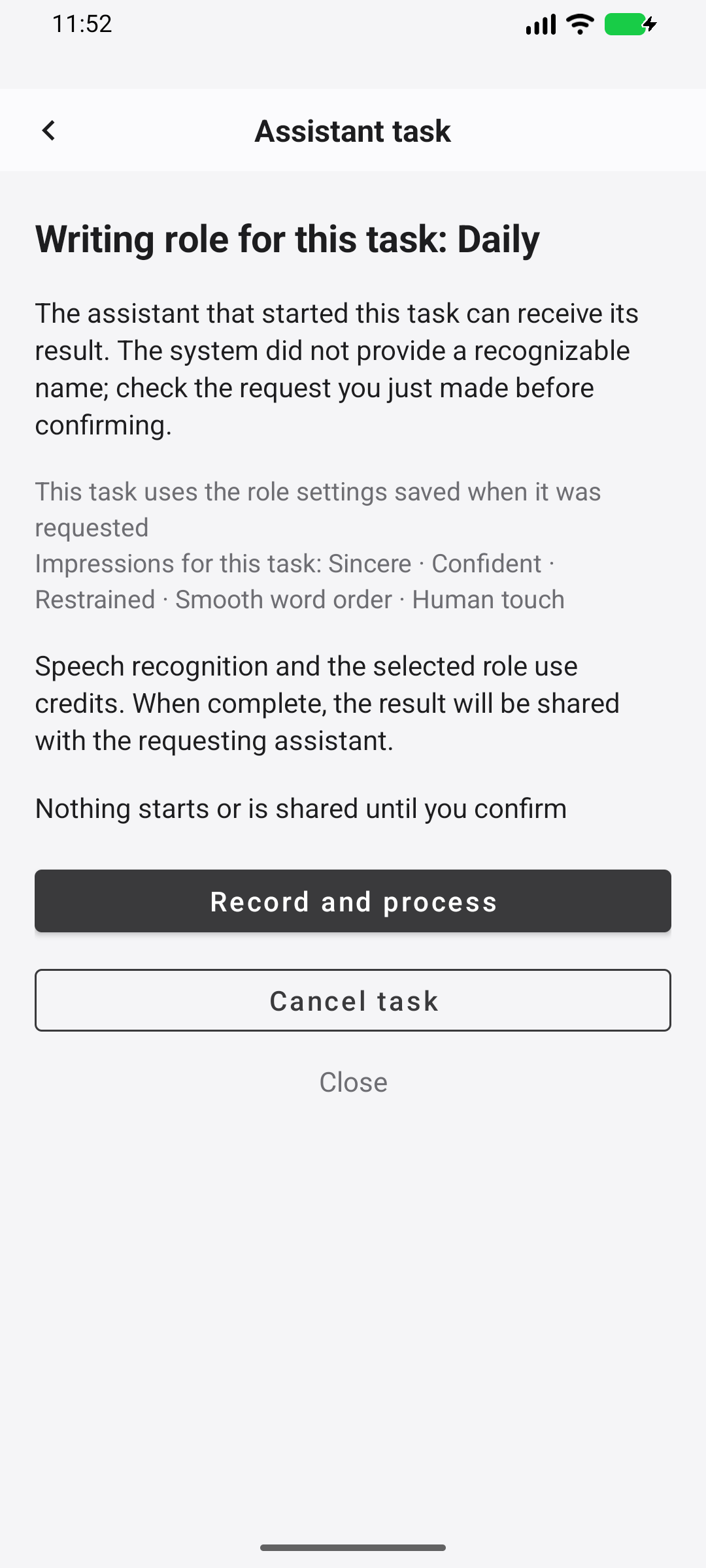
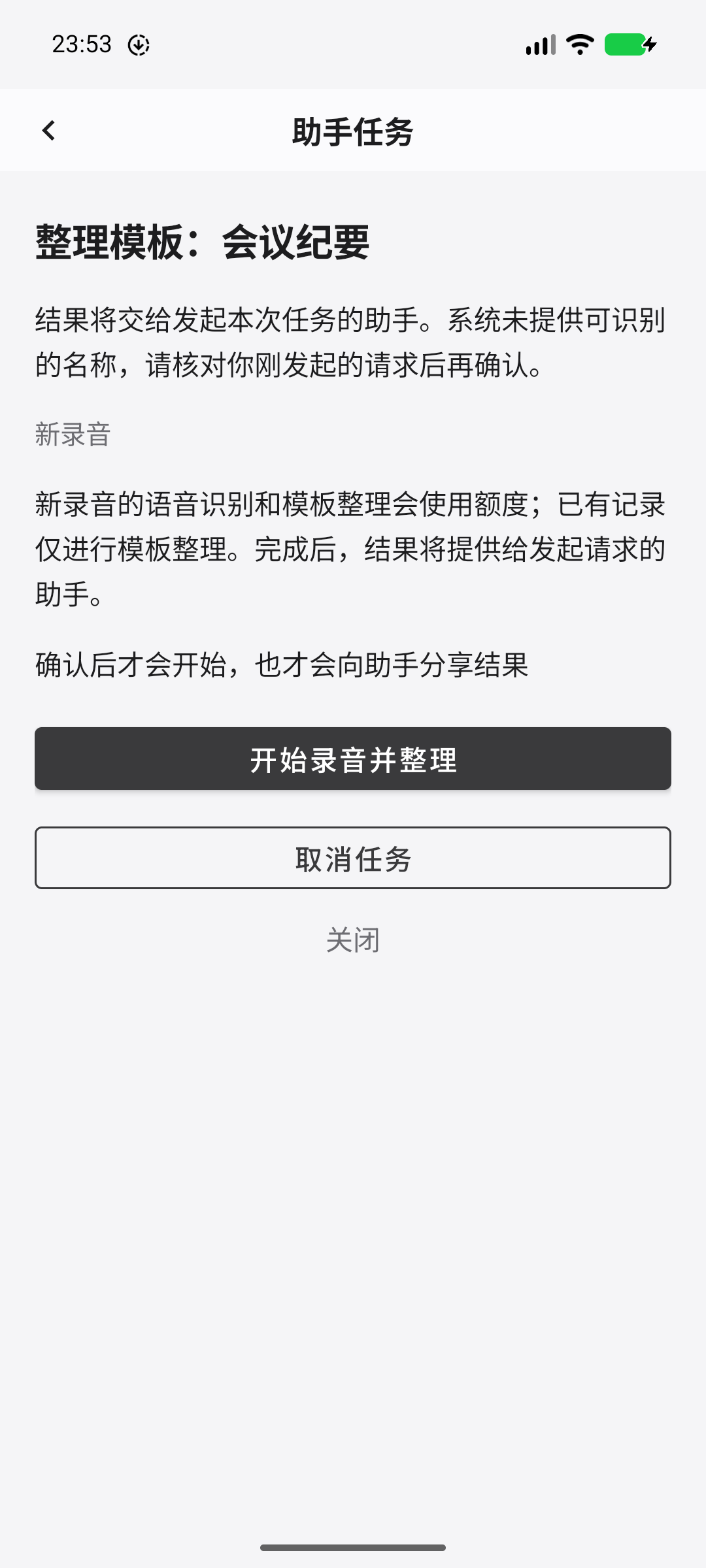
On Android 16 or later devices that support AppFunctions, compatible assistants can start role-based voice input or a templated recording. Review the request in Milo, then confirm recording, organizing and sharing this task’s result. Recognition and organization use your character allowance.
Choose a role, speak, then organize the text. This role setting applies only to this assistant task.
After a long recording, use a meeting, study or other template to organize it. The result is saved on your device.
The page first shows the role, template and where the result will go. The assistant can read only this task’s text, not browse all recordings.
Select an image to view it at full size.
04 / Rewrite roles & templates
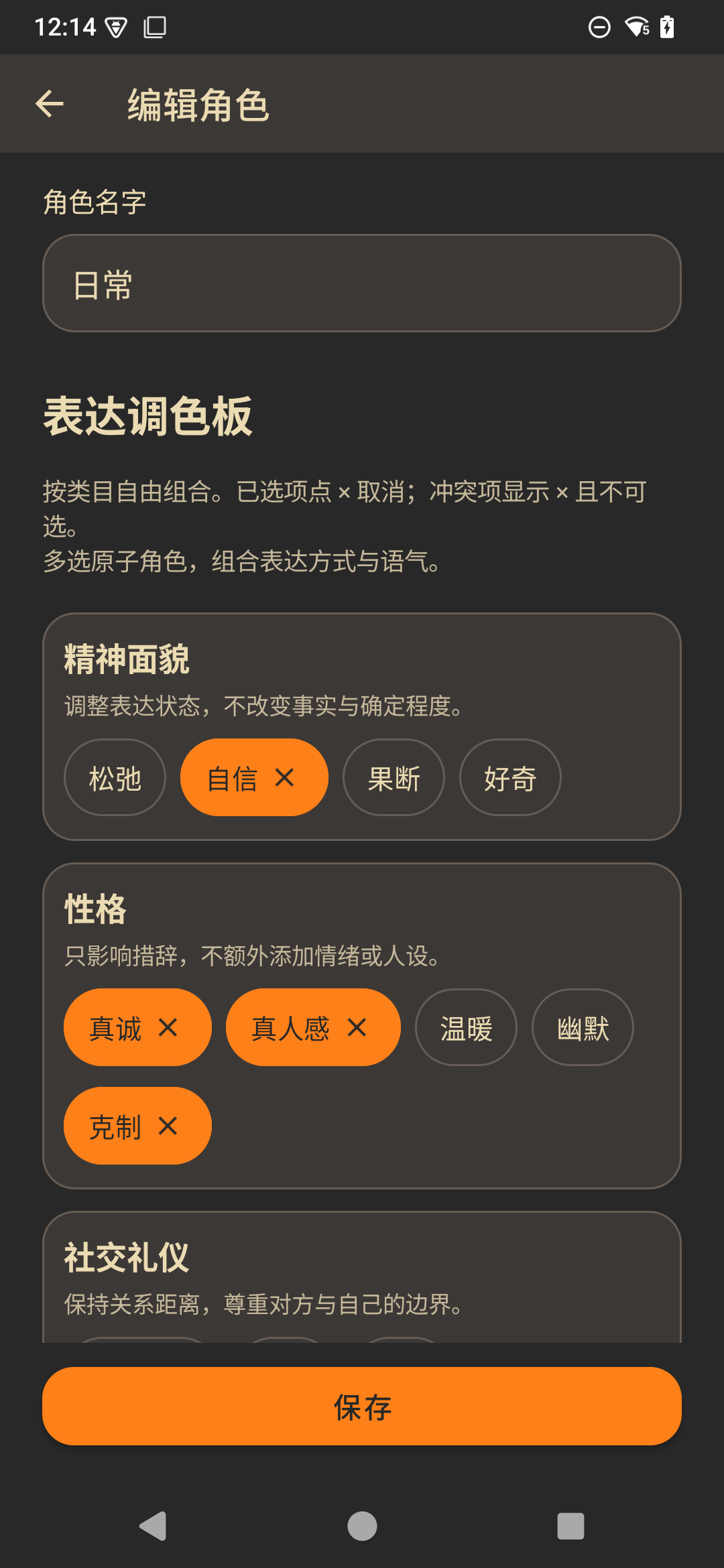
A conversation, a progress update, a business exchange and a dictated coding request call for different styles. Start with the four built-in roles—Daily, Work, Business and Coding—or create and name your own, combining tone and structure into a style you can reuse.
Sincere + Confident + Restrained + Human touch
For chats, shared ideas and everyday conversations. Tidies spoken language while keeping your tone and rhythm, without inventing experiences, emotions or opinions.
Clear + Professional + Concise
For work messages, progress updates and handovers. Organizes the information you gave, removes empty repetition, and preserves facts, conditions and relevant details.
Clear + Professional + Restrained
Lightly refines quotes, collaboration discussions and business messages. Preserves amounts, times, conditions and your level of formality. Keeps clear wording as it is, without adding commitments, greetings or pleasantries.
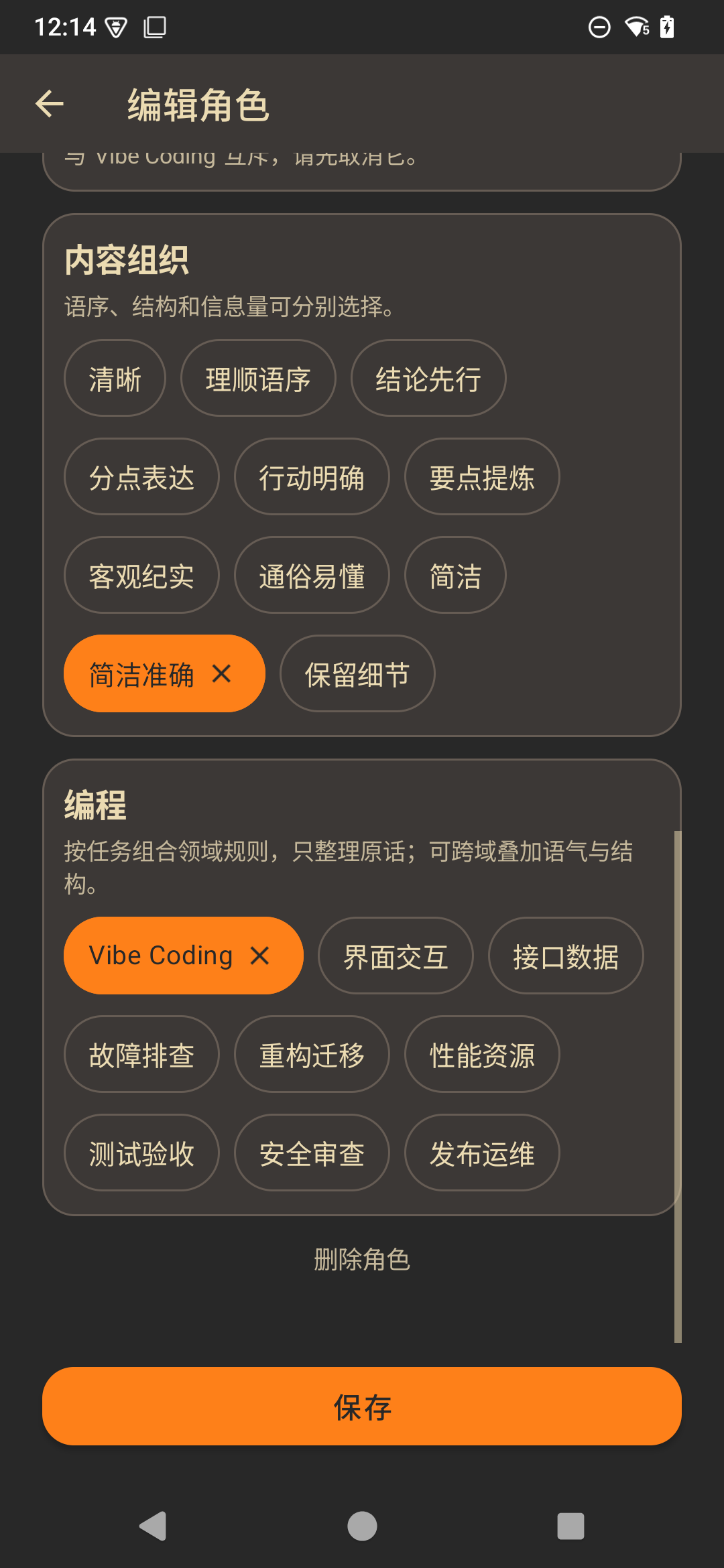
Vibe Coding + Concise and Precise
Turns spoken ideas into requirements for an AI coding assistant, preserving paths, errors, constraints and any acceptance criteria you provided. Does not write implementation code or invent a technical solution.
Mix options across six categories: Presence, Personality, Social Etiquette, Chinese Writing, Organization and Coding. Human touch keeps your original tone. Eight coding task options cover UI, API and data, debugging, refactoring, performance, testing, security and release operations. They help organize requirements; they do not write code. Formal documents, promotion reviews and work summaries are also available. Tap × to remove an option; conflicting choices are disabled. Save your role to use it in the voice panel.
I looked at the quote, and I think it is a little over budget. Could you remove the optional features first and send me another version by Friday?
Could you remove the optional features and send an updated quote by Friday? I think the current quote is a little over budget.
This is a preset example. The app works with your actual words rather than applying this example as a fixed template.
Roles organize what you have already said; they do not answer questions or carry out instructions for you. Choose Original to skip rewriting.
05 / Theme palettes
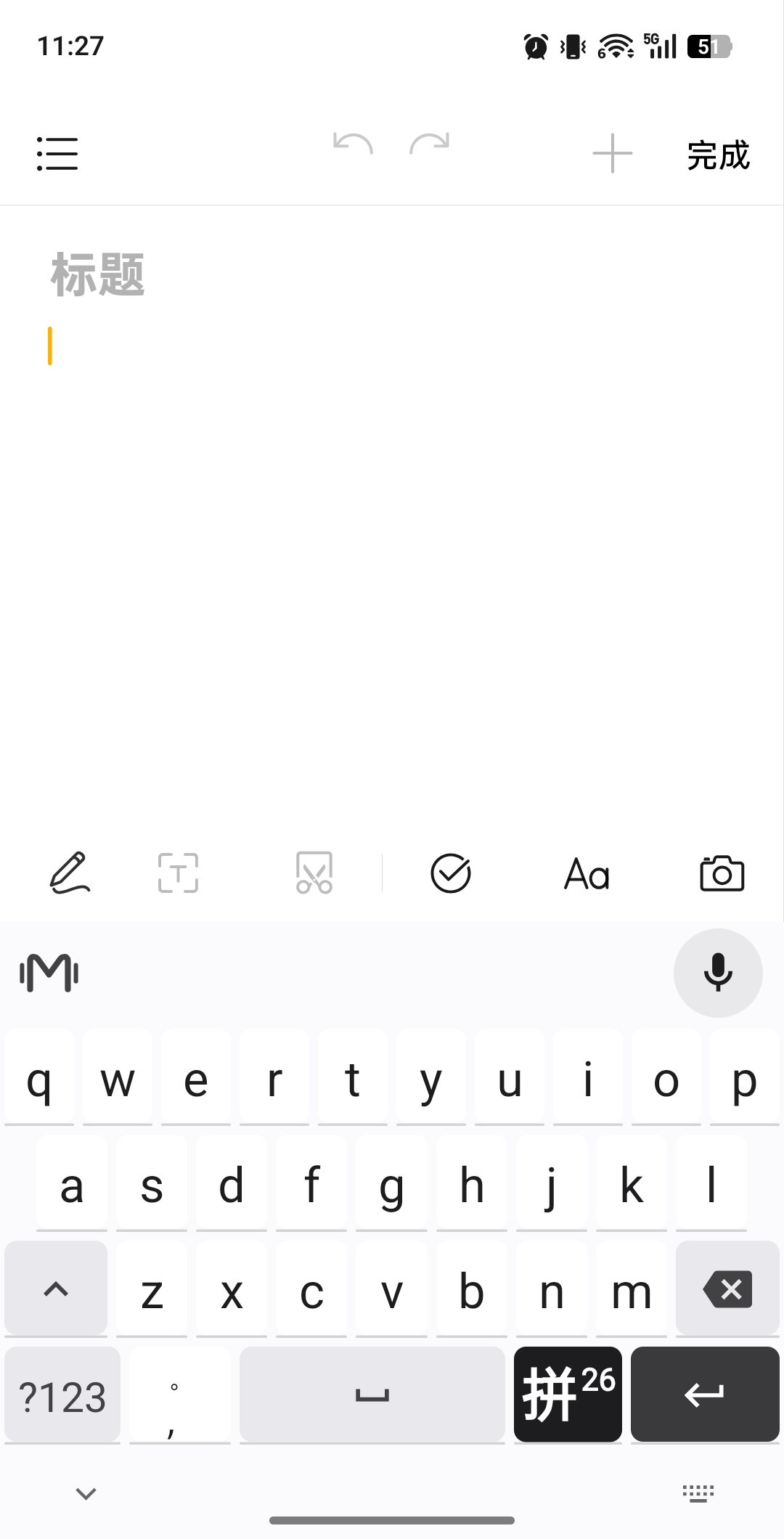
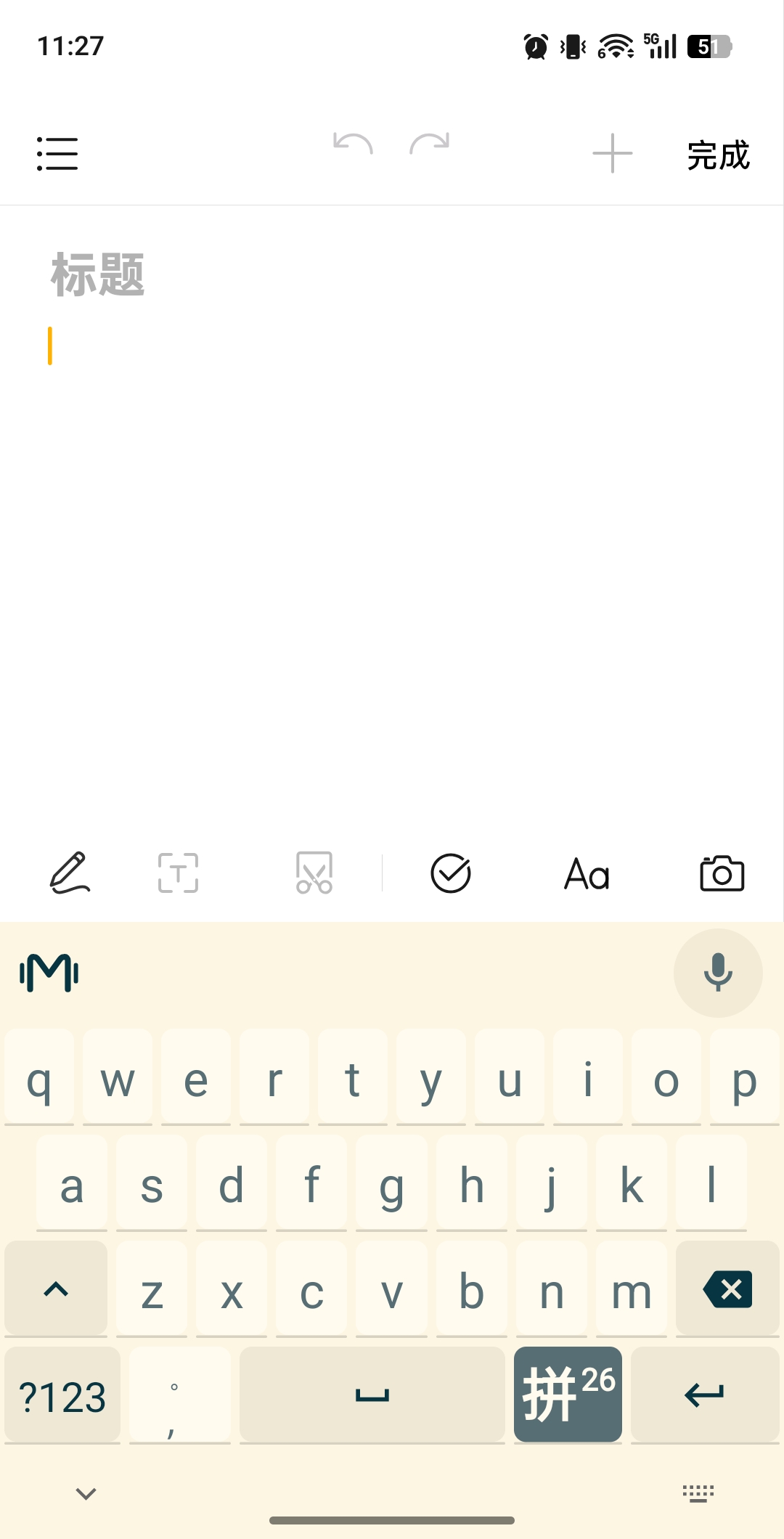
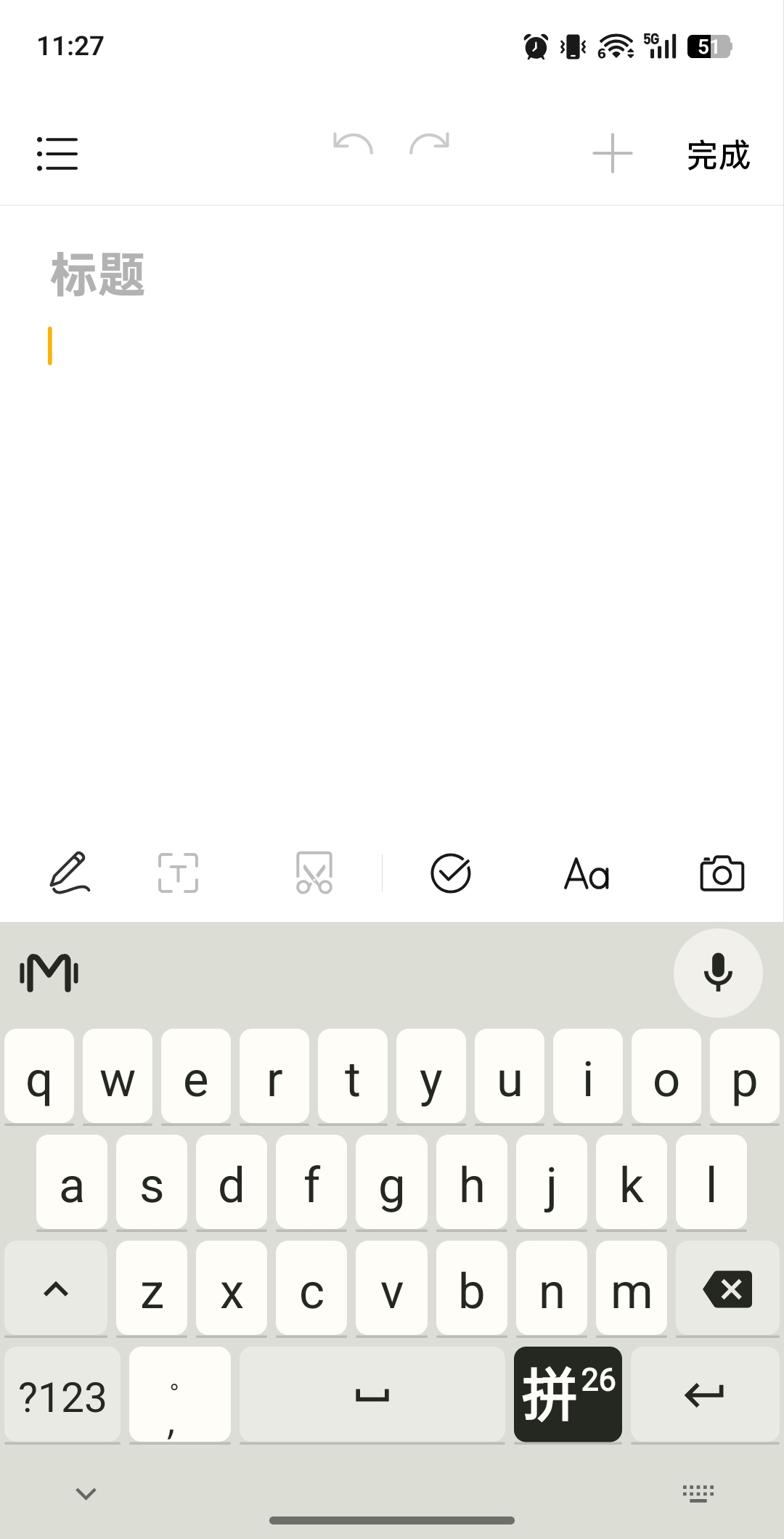
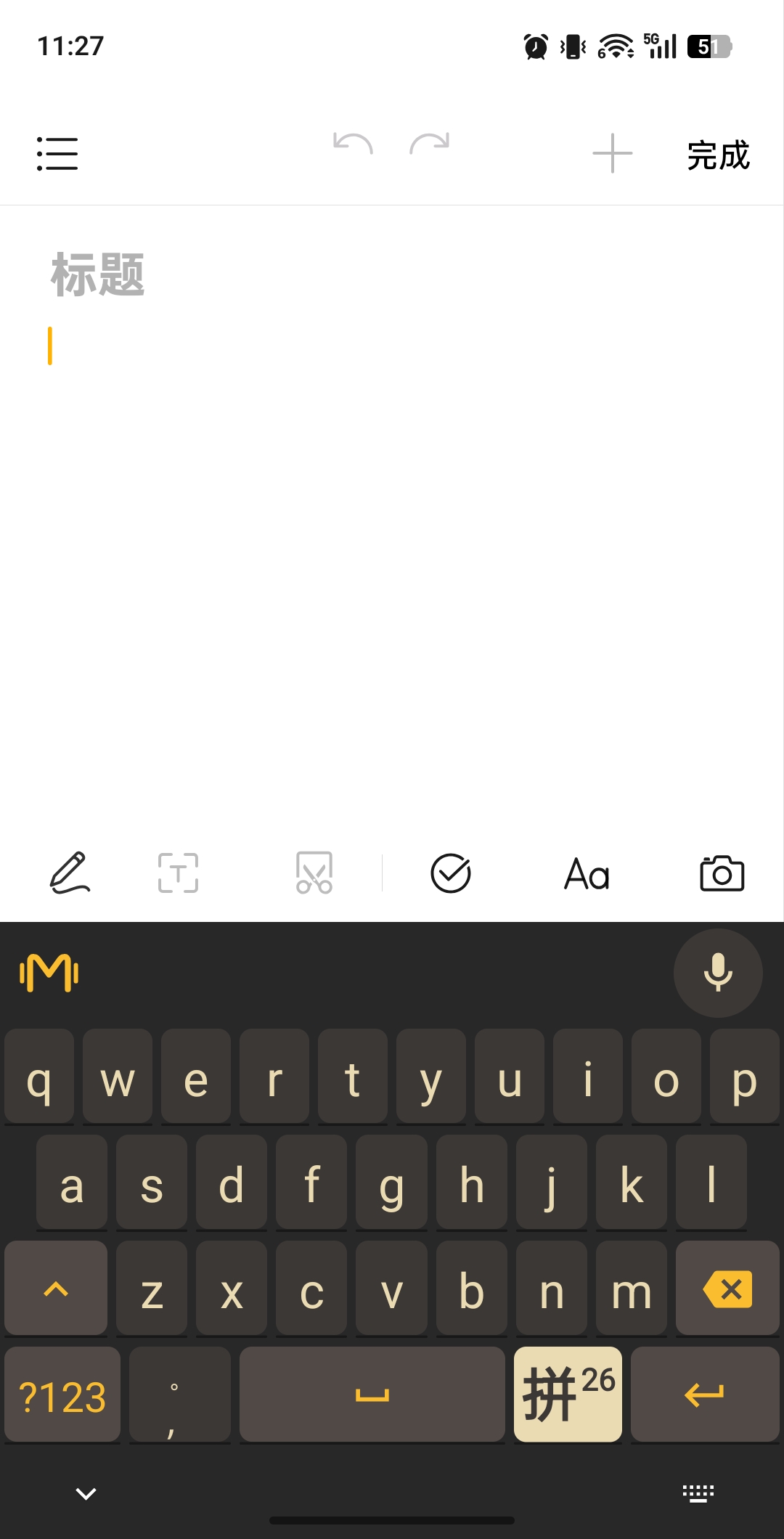
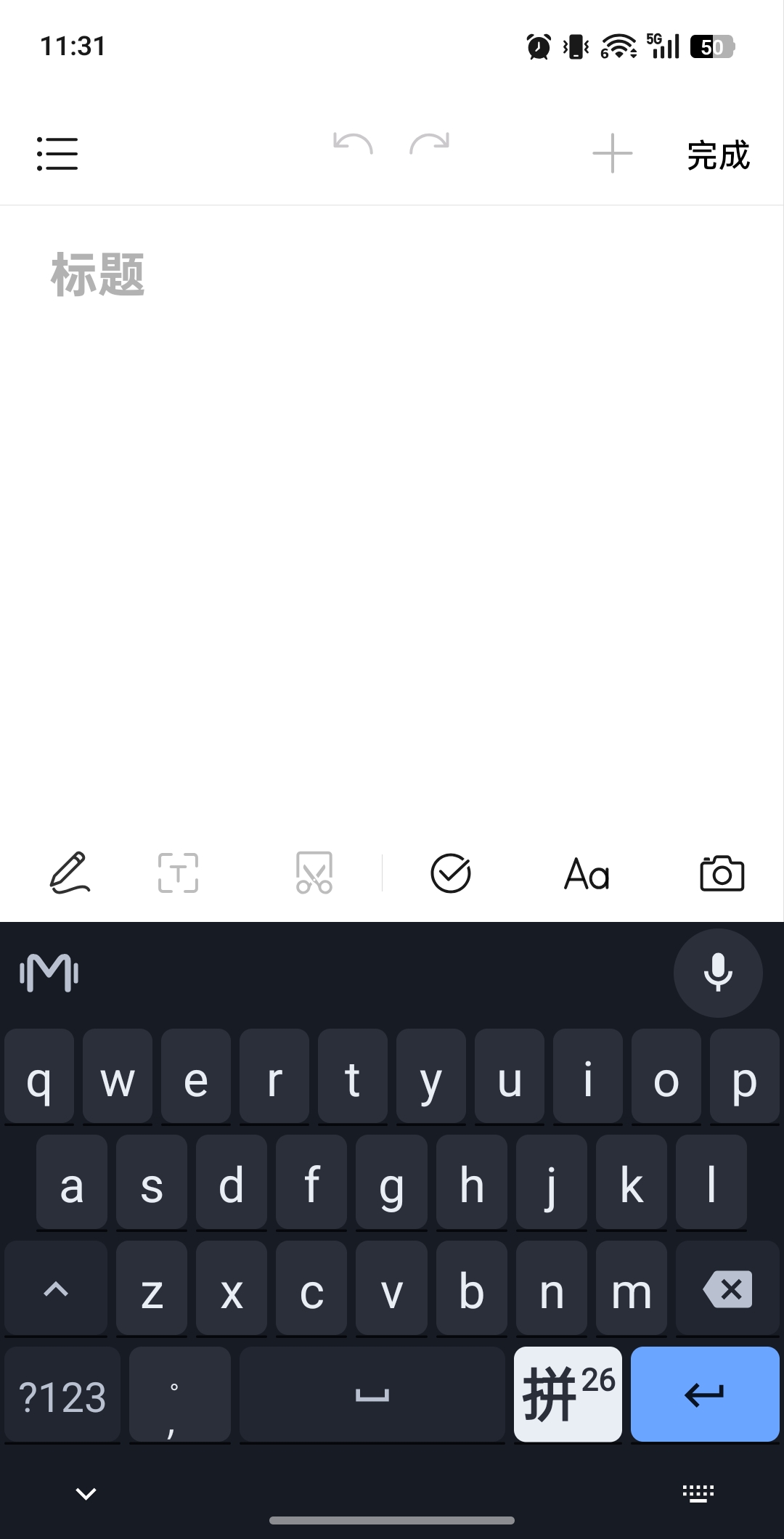
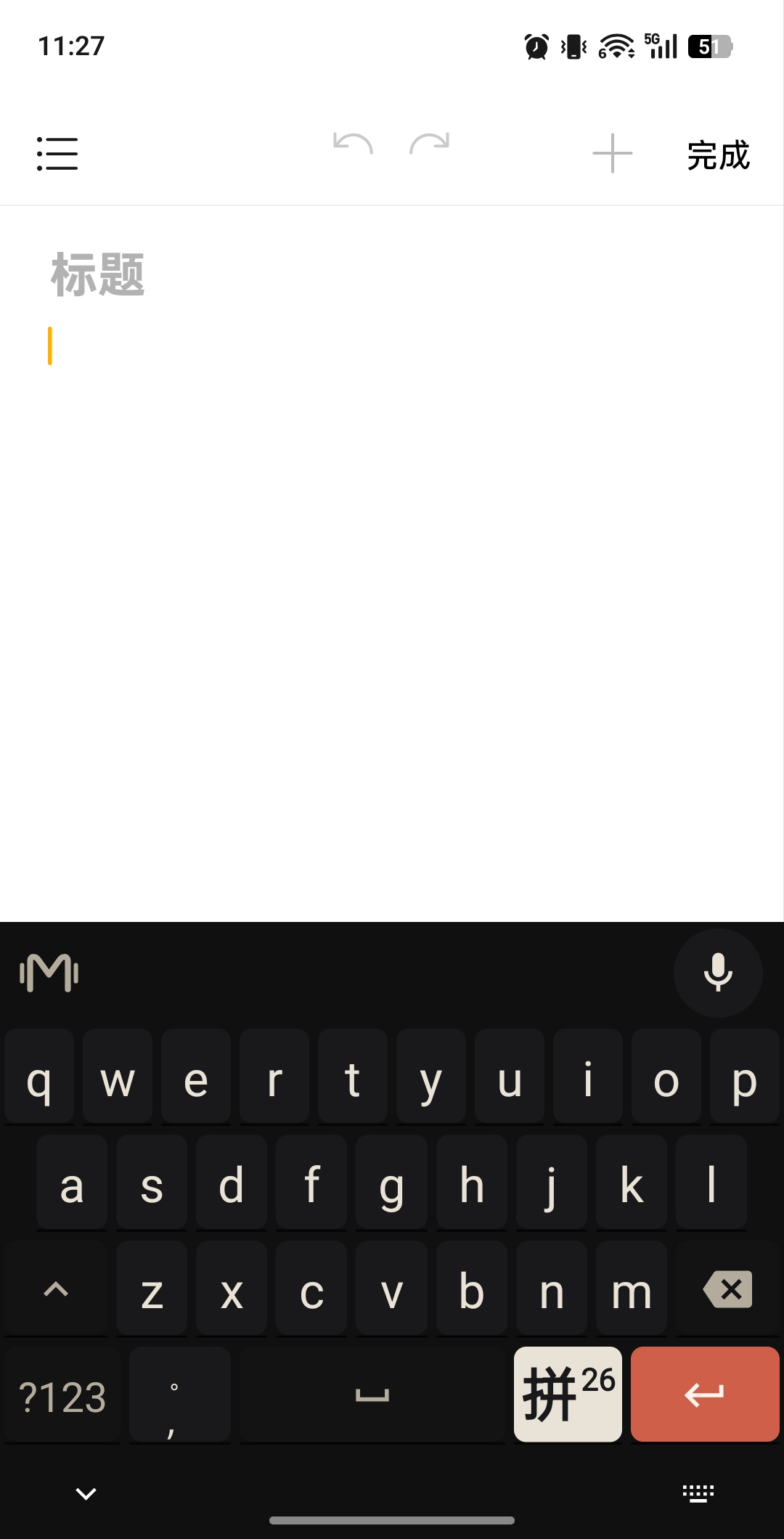
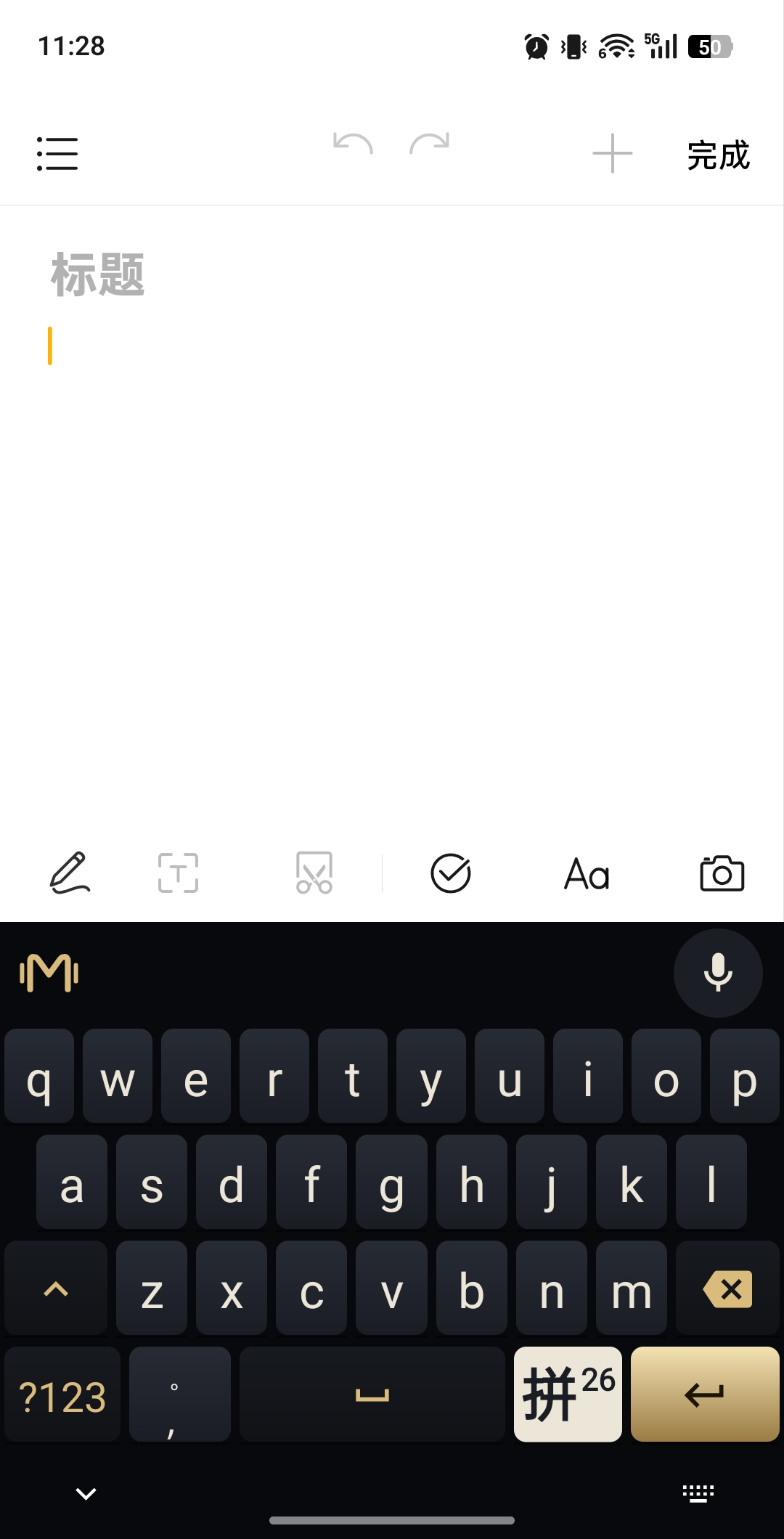
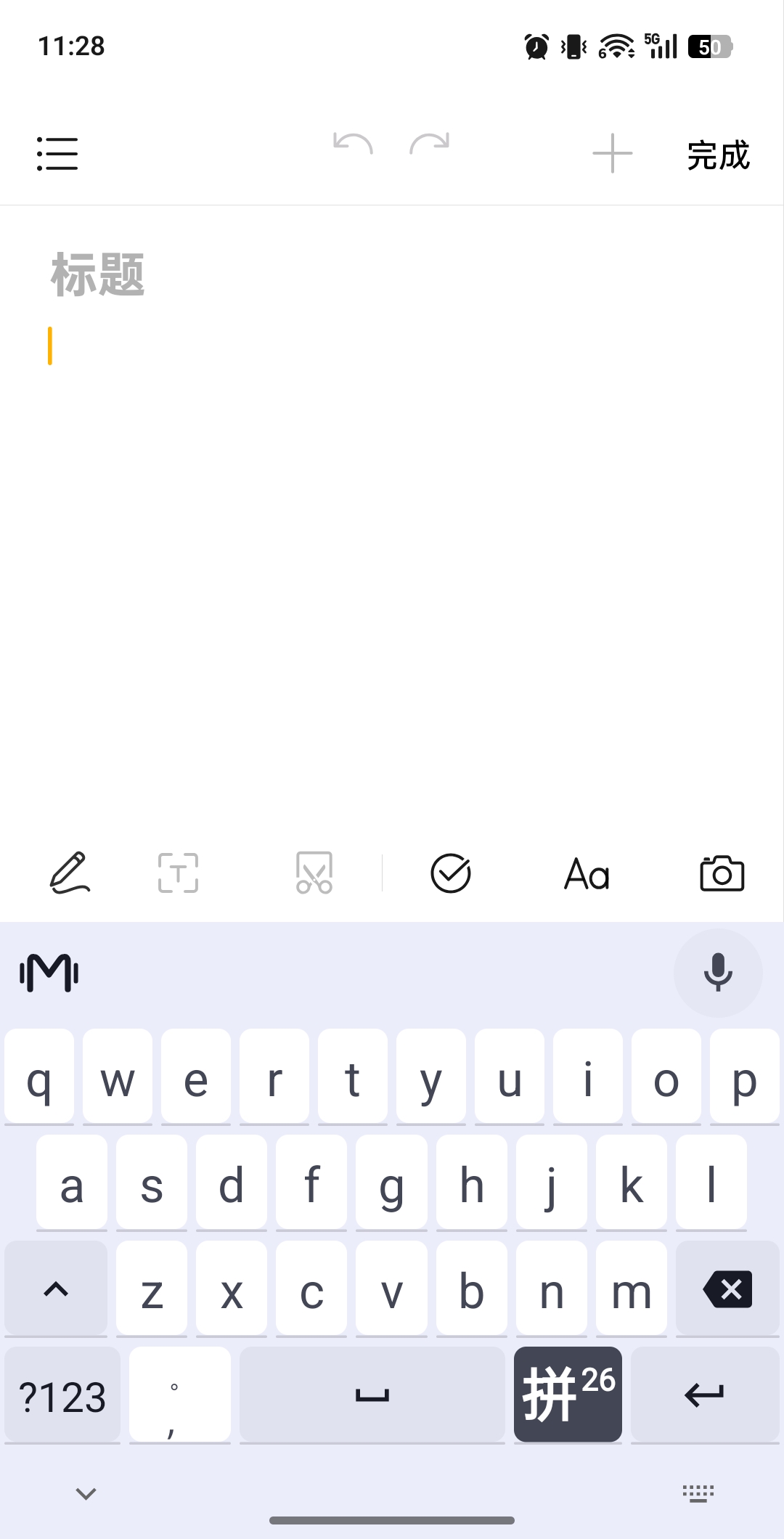
Pick a theme and it applies at once across the keyboard, voice panel and settings pages. White Glaze is the default; Celadon, Ink Gold, Ink Night, Deep Ocean Blue, Solarized Light, Ivory, Gruvbox and Dynamic color are also available.

Select an image to view it at full size.
06 / Pocket dictionary
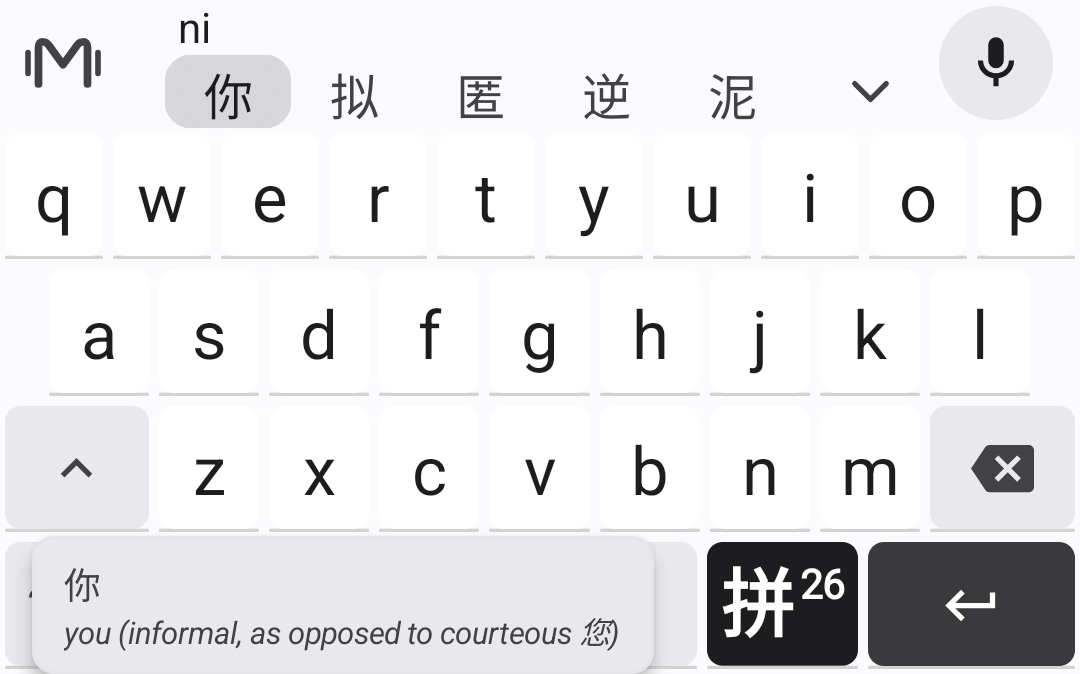
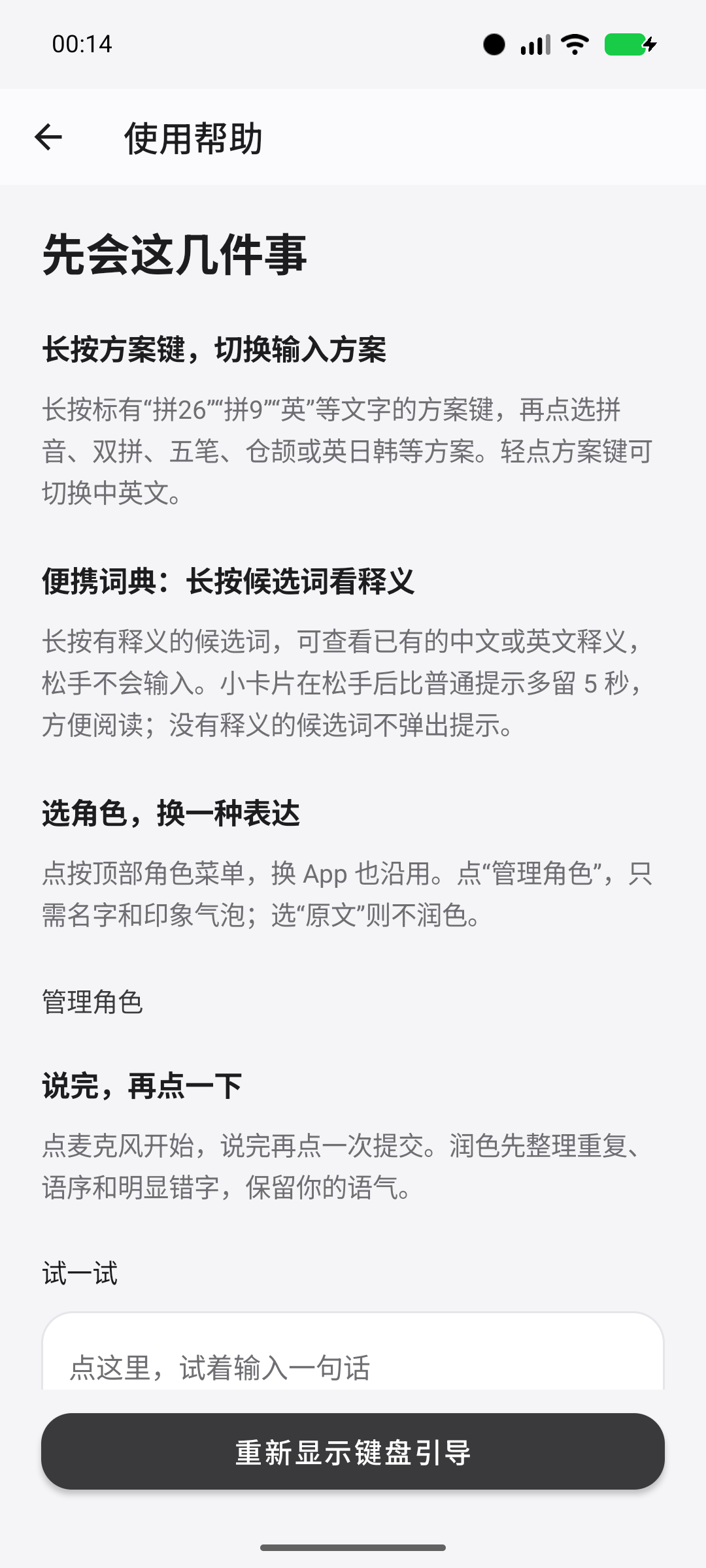
Not sure about a word? Long-press a candidate to see the word and its meaning; the gloss lingers for a few seconds and fades away on its own. Releasing the long-press never selects the word, and candidates without a gloss stay quiet. Help keeps first steps and every feature entry at the same level, ready whenever you need them.
Select an image to view it at full size.
07 / Nine keyboard input schemes
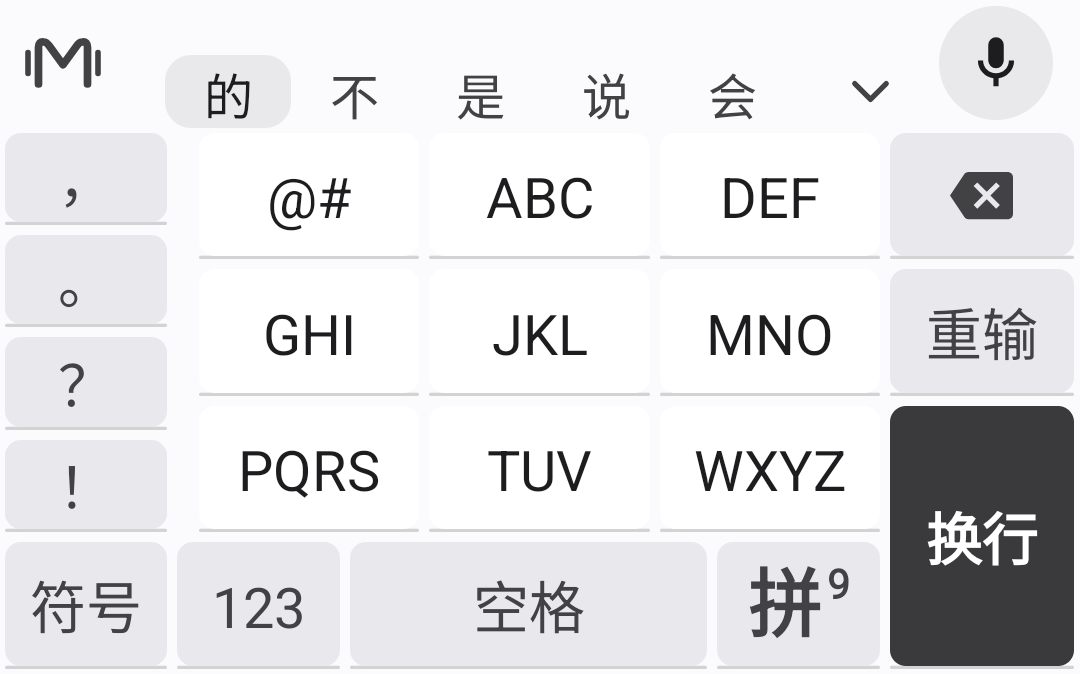
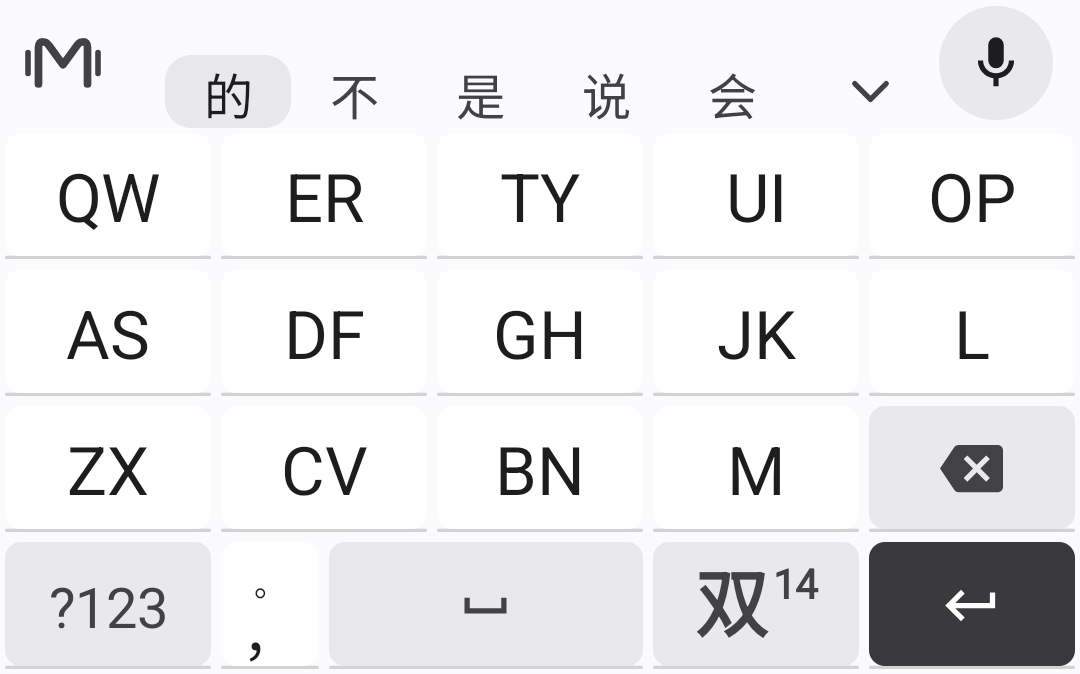
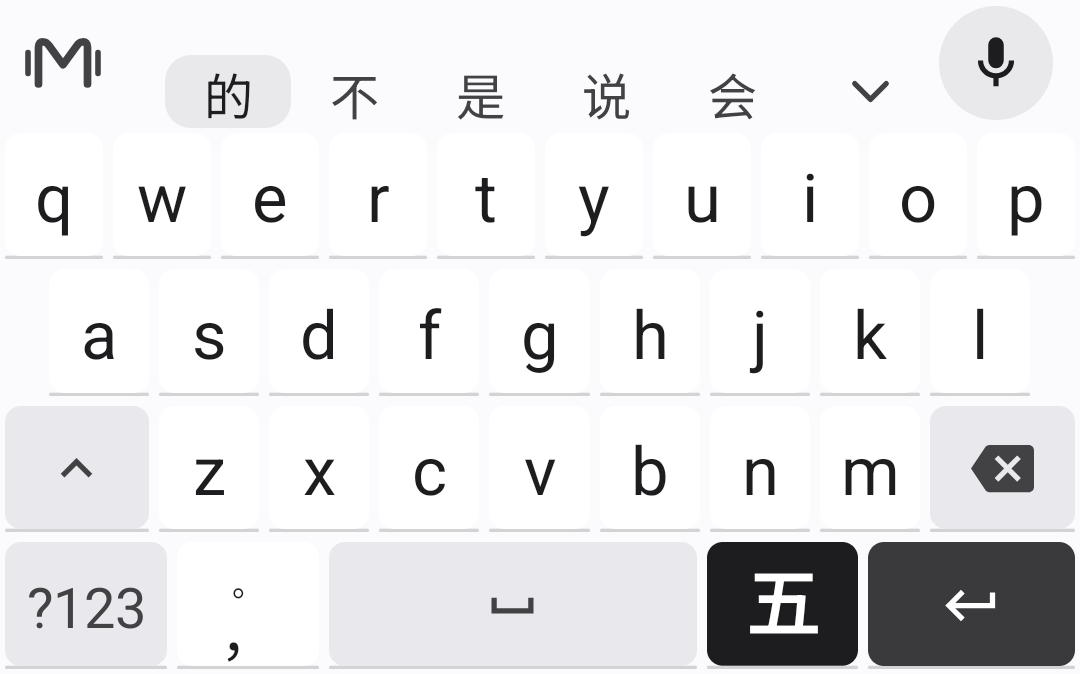
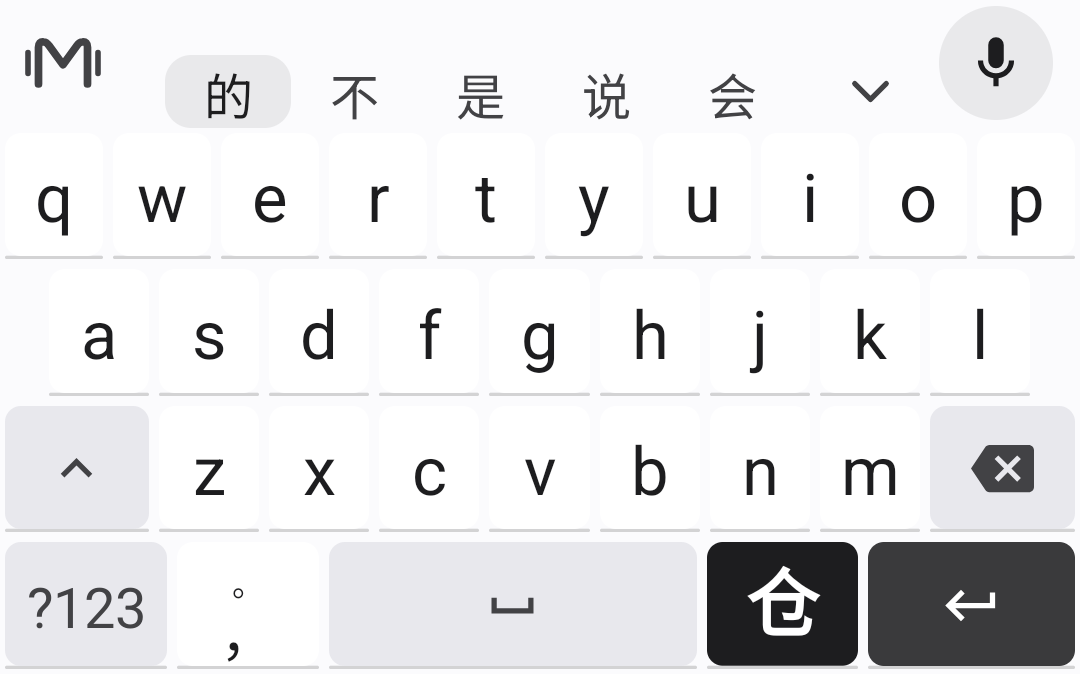
When you cannot speak, return to a familiar keyboard. Type Pinyin on a full keyboard or nine-key layout, use Xiaohe double Pinyin with 26 or 14 keys, or choose shape-based Wubi and Cangjie. English, Japanese and Korean each have their own input scheme.
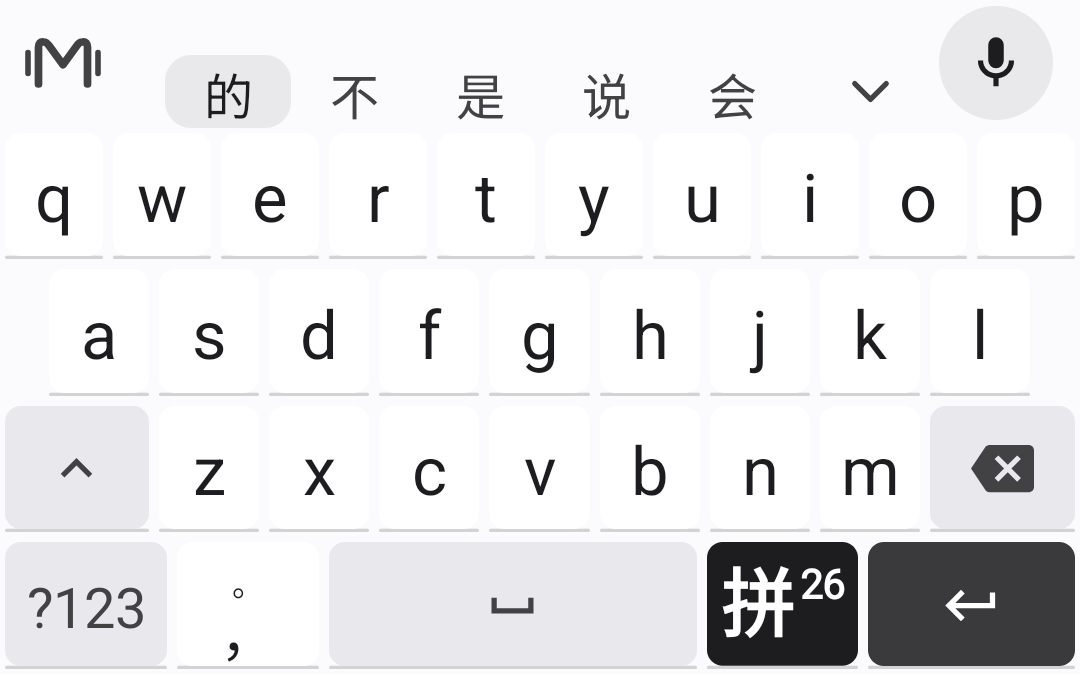
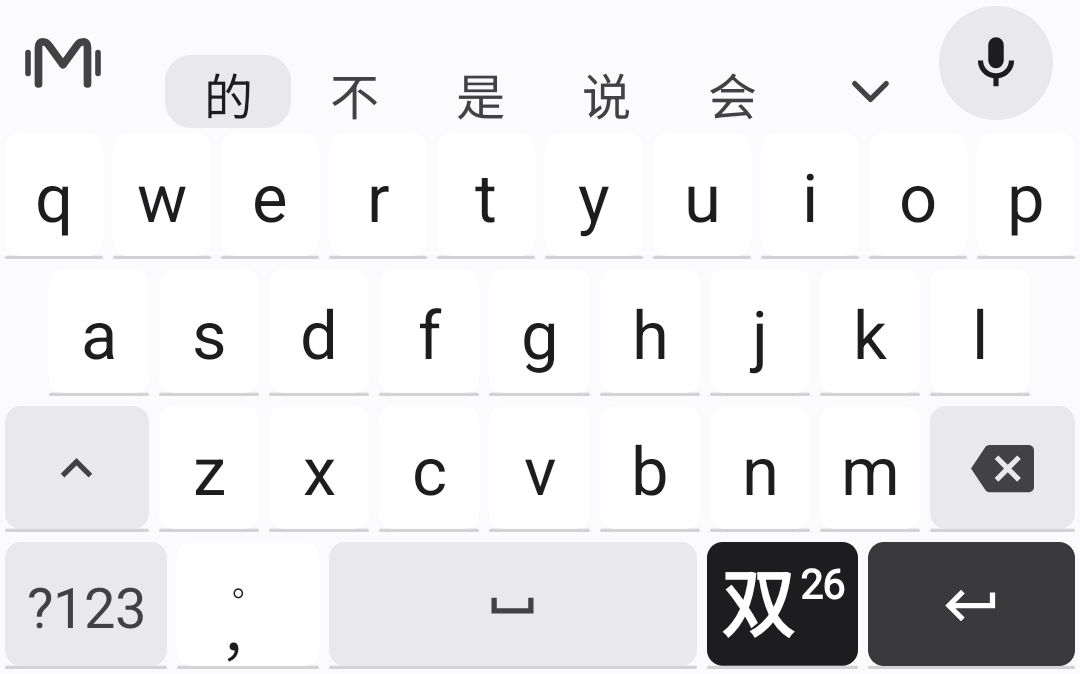
A familiar alphabet keyboard with Pinyin candidates and phrase composition, so you can keep your typing habits for chats and longer writing.
Best forPeople who prefer a 26-key Pinyin keyboard and want to mix full syllables with initial-letter abbreviations.
Uses Xiaohe's initial-and-final coding on a full alphabet keyboard, bringing familiar desktop double Pinyin habits to your phone.
Best forPeople who already use Xiaohe or want to learn double Pinyin to reduce the number of keystrokes.
Puts Xiaohe double Pinyin into a grouped 14-key layout, offering experienced users another keyboard choice for their phone.
Best forDouble Pinyin users who prefer fewer keys, larger touch areas and a grouped layout.
Keeps the Wubi coding method so experienced writers and office users can continue using familiar character roots.
Best forPeople familiar with Wubi 86 roots who prefer to compose characters by shape.
Select characters using shape-based codes, preserving Cangjie habits without requiring a switch to Pinyin.
Best forPeople familiar with Cangjie 5, especially those who use Traditional Chinese and shape-based input.
Enter Pinyin on grouped nine-key buttons and choose from candidates, keeping a familiar mobile typing rhythm.
Best forPeople who prefer a phone's nine-key layout, larger keys or frequent one-handed typing.
A dedicated English input scheme with dictionary candidates, so you can write English using the same keyboard.
Best forPeople who often write English messages or study notes, or switch between Chinese and English.
Type Japanese using romaji and choose dictionary candidates when switching between Chinese, English and Japanese content.
Best forLearners familiar with Japanese romaji input and people who use Japanese in everyday communication.
Compose Hangul using a two-set layout, with a dedicated Korean input scheme for multilingual use.
Best forPeople who use the standard Korean two-set keyboard, and those learning Korean.
Press and hold M / English on the keyboard to switch input schemes. Full keyboard Pinyin accepts full spellings and initial-only shortcuts; Shuangpin maps initials and finals to keys and takes some familiarity; Wubi and Cangjie use character shapes. The list shows clear scheme names so you can choose what suits you.
T9 Pinyin, double Pinyin, Wubi and Cangjie now offer follow-up words after a selection. The scheme switch key on the full keyboard uses reversed colors to make it easier to spot.
08 / Keyboard vocabulary and custom phrases
Voice and keyboard input share local vocabulary and word frequencies. After successful speech recognition and homophone correction, each occurrence of a matched hotword adds to its frequency. With WebDAV, sync your vocabulary and custom phrases to a cloud drive or personal NAS you manage for backups and device changes.
Sync the dictionary built through everyday typing to your own storage, then download and back it up yourself. Keep and manage your familiar words and custom phrases.
Enter your server address and access credentials in the app's sync settings. Use a WebDAV service such as Nutstore or Nextcloud, or your own NAS with WebDAV enabled. Save the settings and tap Sync Now to export and sync your dictionary.
With compatible Rime input schemes and dictionaries, configure the appropriate sync or import process to carry your vocabulary across devices. Keep familiar words with you when you switch.
Configure a WebDAV service before exporting and syncing your keyboard dictionary to your storage. Input schemes, dictionaries and sync methods may differ between keyboards.
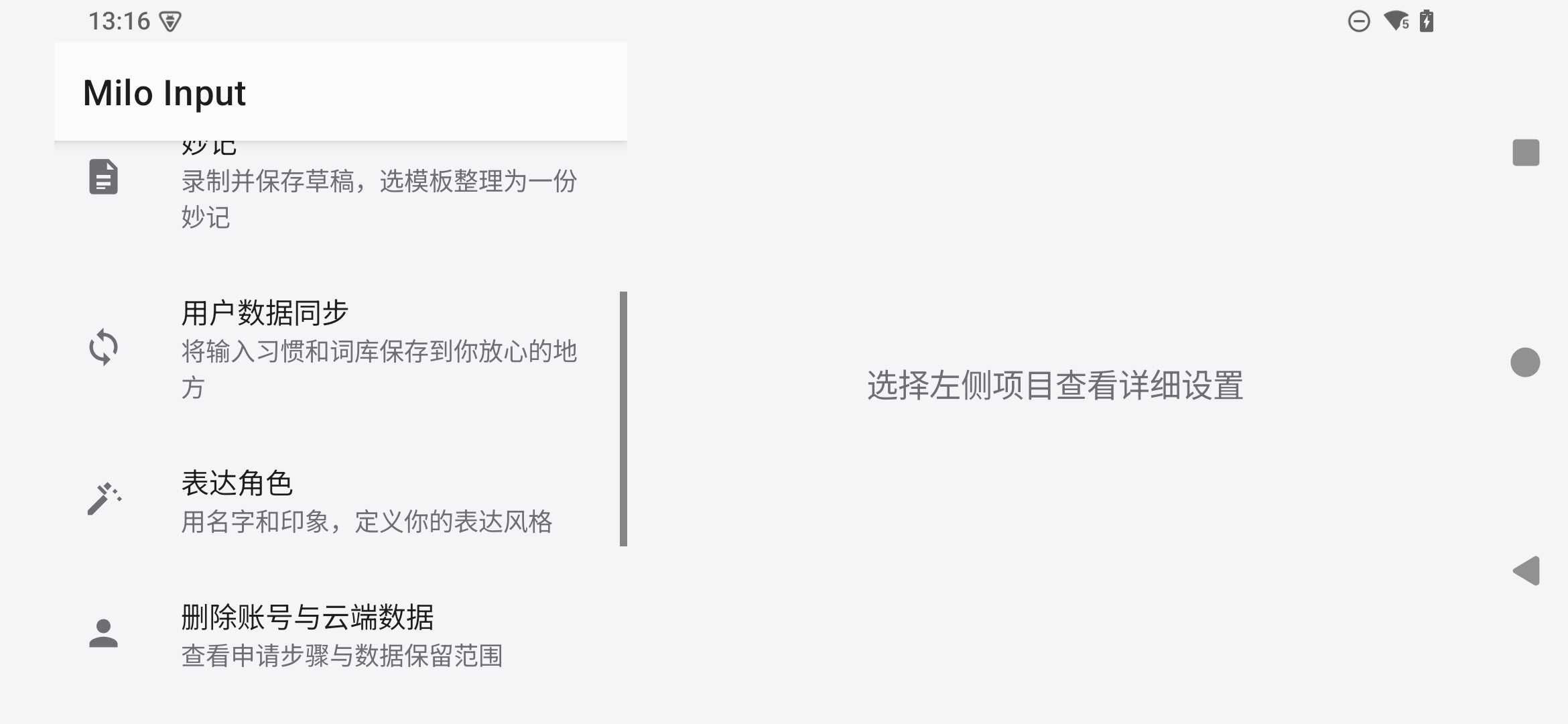
Read the privacy policySettings explain how to request deletion of your account and cloud data. The request needs identity verification and does not delete anything immediately. Read the request steps
Milo Input 1.7.111: Saved recordings no longer retry indefinitely. After several failed attempts the app says so and clears that audio, and long recordings replay in full. A stalled voice connection is released automatically, so the mic always returns to normal recording.
v1.7.111 · 83.4 MiB · 2026-11-02 · 7a43c4e5
Get the release from Google Play and receive future updates automatically
Windows 10/11 (64-bit) preview, unsigned. The installer asks for administrator rights and Windows may show an unknown publisher; open More info and choose Run anyway to continue. It does not change your default keyboard or language list.
If Smart App Control is on, Windows may block unsigned programs outright with no way to let them through. That is a system limit; do not turn the protection off to install this.
After installing, add Milo 输入法 under Settings > Time & language > Language & region > Chinese (Simplified) > Language options > Keyboards, then switch with Win+Space.
Milo registers one keyboard under Chinese (Simplified) only. Chinese/English, full/half width, simplified/traditional and schemes such as Pinyin, Double Pinyin or Wubi are all switched inside Milo with hotkeys: Shift, Shift+Space, Ctrl+Shift+H, Ctrl+`; the gear at the right end of the candidate bar does the same.
v0.1.4 Alpha · 58.3 MiB · 2026-11-01 · e4c635ff